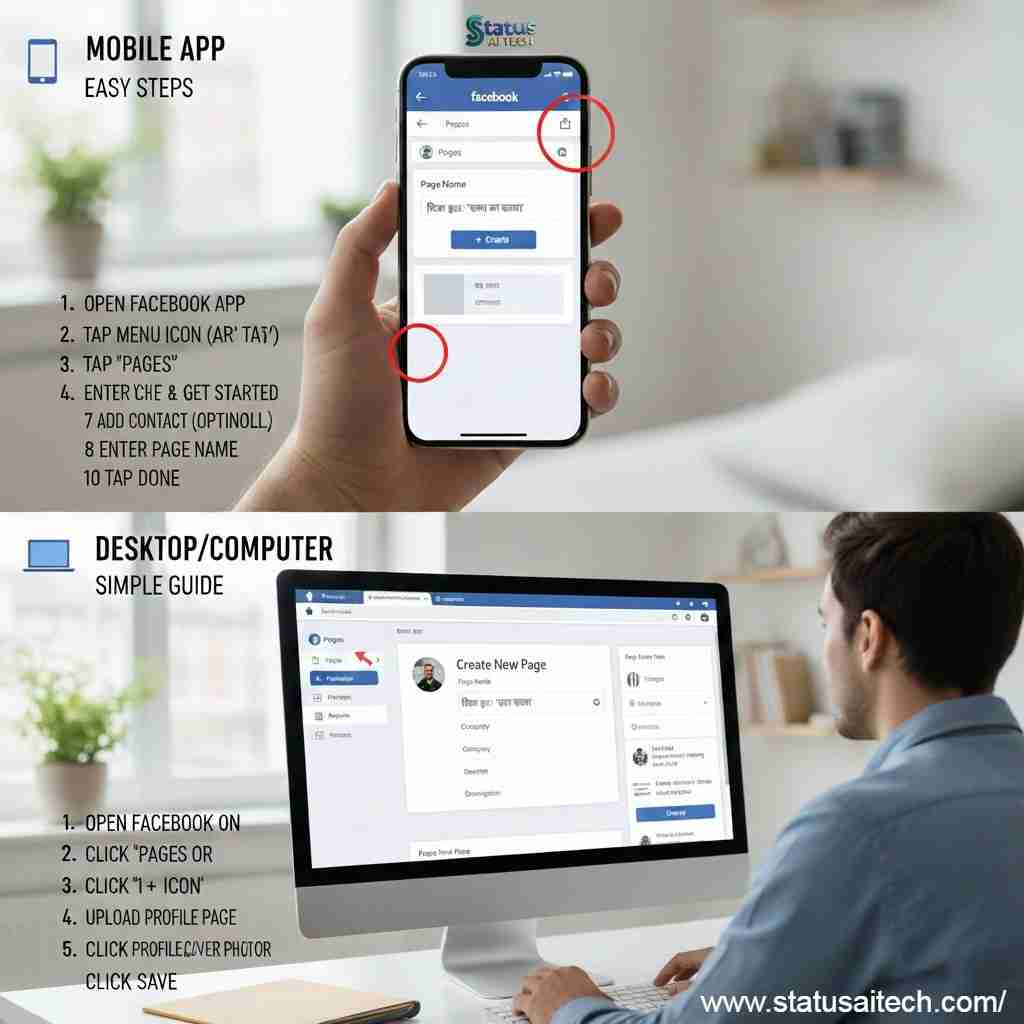
How To Create Facebook Page On Mobile & Pc Desktop
How To Create Facebook Page, Hello! I’d be happy to guide you on how to create a Facebook ID (Account) on your PC.
The process is straightforward and requires only a web browser (Chrome, UC Browser, Opera Browser, Firefox, Safari, Edge, etc.) and some basic personal information.
📋 What You Will Learn in This Guide:
How to create a Facebook ID on PC.
How to create a Facebook Page on Desktop.
How to create a Facebook Page on Mobile App.
Key benefits of having a Facebook Page.
💻 Step-by-Step Guide to Create a Facebook ID on PC
1. Open the Facebook Website
Launch your preferred web browser on your computer.
Type
www.facebook.cominto the address bar and press Enter.
2. Start the Sign-Up Process
On the Facebook homepage, look for the “Create new account” button. It is usually a green button located below the main login boxes on the right side of the screen.
Click “Create new account”.
3. Fill Out the Sign-Up Form
A registration box will pop up. You need to enter the following details:
First name: Enter your first name. /Rameshwar
Surname (Last Name): Enter your last name. /Singh
Mobile number or email address: Enter a valid mobile number or email ID that you can access for verification. This will be your primary login method.
New password: Choose a strong password (a mix of uppercase/lowercase letters, numbers, and symbols).Ram@@##567
Date of birth: Use the dropdown menus to select your correct date of birth (01/01/1995). You must be at least 13 years old to create an account.
Gender: Select your gender (Female, Male, or Custom).
4. Click Sign Up
Once all the fields are completed, click the green “Sign Up” button at the bottom of the form.
5. Verify Your Account
Facebook will send a confirmation code to the mobile number or email address you provided.
A new screen will prompt you to enter this code. /546325
If you used an email, check your inbox (and possibly your spam/junk folder) for the code or a verification link.
If you used a mobile number, you will receive a text message (SMS) with the code.
Enter the code into the box on the Facebook screen and click “Confirm” or “Continue”.
That’s it! Your new Facebook account is now active.
Next Steps Facebook Page – Only PC
⚙️ How to Create a Facebook Page – PC
Creating a Facebook Page is a quick and straightforward process from your computer’s web browser.
Step 1: Log In to Facebook
Open your preferred web browser (Chrome, UC Browser, Opera Browser, Firefox, Safari, Edge, etc.).
Go to the Facebook website and log in to your personal account.
Step 2: Navigate to the Page Creation Area
On the Facebook Home Feed, look at the left-hand sidebar menu.
Click on the ‘Pages’ icon/link (it usually looks like a flag).
Alternatively, you can often find the ‘+ Create’ button in the top menu bar, and then select ‘Page’.
Step 3: Start Creating the Page
On the Pages section, click the ‘Create New Page’ Button.
Step 4: Fill in Page Information
You will see a panel on the left where you need to input the basic details for your Page:
1 . Your Page Name : Status Ai Tech
2 . Your Website Category : Status Ai Tech, Digital Marketing , SEO, SMM, & Etc.
3 . Your Bio Description : ⚙️ Technology 📣 Digital Marketing 🔧 Digital Solutions 💻 Web Development, Status Ai Tech, Digital Marketing , SEO, SMM, & Etc.
Next…
Step 5: Create the Page
Once you have filled in the required fields, click the ‘Create Page’ button at the bottom of the panel.
Step 6: Final Setup and Customization
Contact Info: Add details like your website, phone number, email, and location (if applicable).
Profile Picture: Upload a clear profile picture (usually your logo or main image).
Cover Photo: Upload a large, eye-catching cover photo that appears at the top of your Page.
Action Button: Click ‘Add Action Button’ to choose a primary button for visitors (e.g., Send Message, Call Now, Shop Now).
Click ‘Done’ or ‘Next’ once you have completed the setup steps.
Congratulations, friends! Your Facebook Page is now successfully created!
📱 How to Create a Facebook Page on Mobile App
Open the Facebook App and tap the Menu (☰) icon.
Go to ‘Pages’ and click ‘+ Create’.
Click ‘Get Started’ and enter your Page Name and Category.
Upload your Profile/Cover photos and tap ‘Done’.
🌟 5 Benefits of a Facebook Page
Unlimited Followers: Unlike profiles (5000 limit), pages can have millions of followers.
Monetization: Earn money through In-Stream Ads and Reels.
Business Insights: Track who is visiting your page and from where.
Professional Brand: Builds trust with your audience.
🚀 How To Create Facebook Page On Mobile & Pc Desktop
Friends, in conclusion, I would simply like to say this: I would simply like to say this: Creating a Facebook ID and Page is the first step toward your digital success. Whether for personal use or business, these tools are powerful. Start your journey today!
Status Ai Tech hopes this guide was helpful. If you face any issues, feel free to ask in the comments. Thank you for your time!
Free Website Localhost Guide | 🚀 Build Your First Website for ₹0